How to Bulk Schedule X (Twitter) Posts
X (formerly Twitter) is where conversations happen in real-time, with over 600 million monthly users. Bulk scheduling your X posts allows you to stay active in conversations, share content at optimal times, and build your presence without constant manual posting.
What You Can Schedule on X (Twitter)
X posts support text, images (up to 4), videos, and threading. Premium users get extended character limits.
How to Bulk Schedule X (Twitter) Posts
Follow these 5 simple steps to schedule your X (Twitter) content.
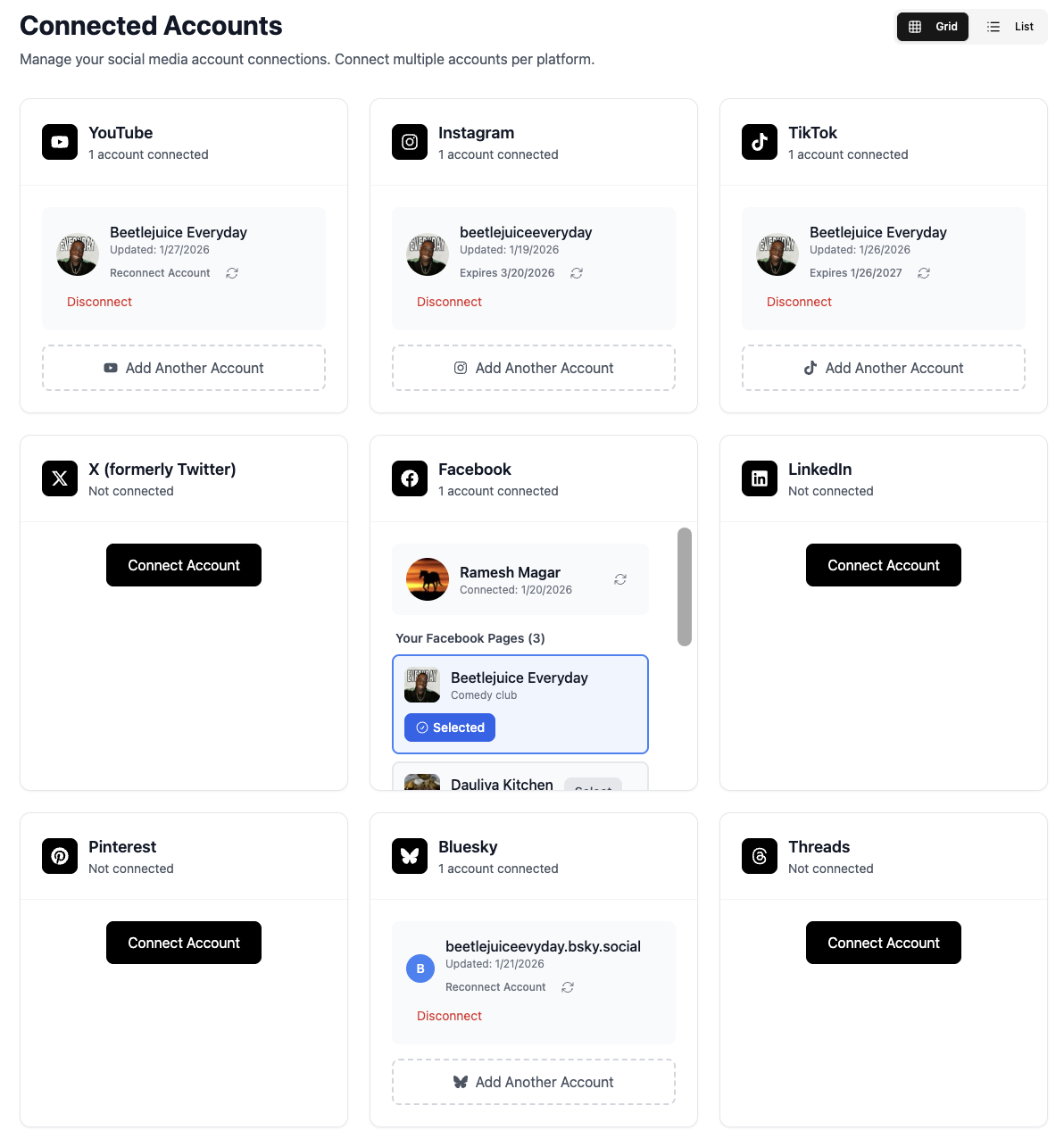
Connect Your X Account
Link your X account to TheTabber through secure OAuth authentication. Connect multiple accounts to manage all your X presence.
- Authenticate with your X credentials
- Connect personal and brand accounts
- Premium/verified accounts work great
Create Your Post Content
Write your post or upload images/videos. X supports text, images, GIFs, and videos in various formats.
- Posts can be up to 280 characters (more for Premium)
- Add up to 4 images per post
- Videos up to 2:20 for free accounts
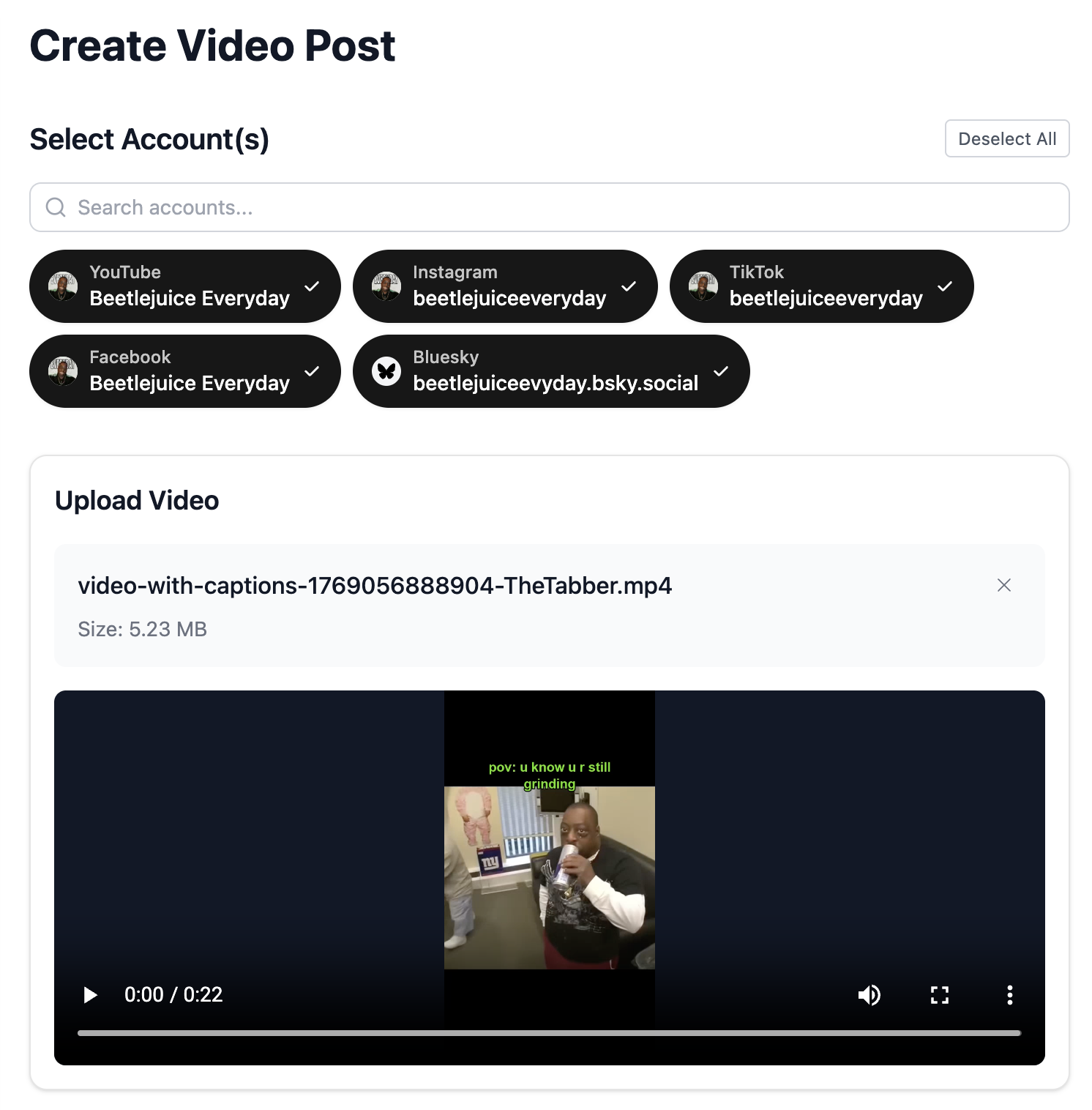
Select Your X Accounts
Choose which X accounts to post to. Schedule the same content across multiple accounts or customize each.
- Post to multiple accounts simultaneously
- Great for brand + personal accounts
- Customize captions per account if needed
Write Your Post
Craft a compelling post that sparks conversation. Use our AI to generate engaging copy optimized for X's fast-paced environment.
- Keep it concise and punchy
- Use 1-2 relevant hashtags (not more)
- Ask questions to drive replies
- Use {{#}} to number daily posts (Day {{#}}, Tip #{{#}}...)
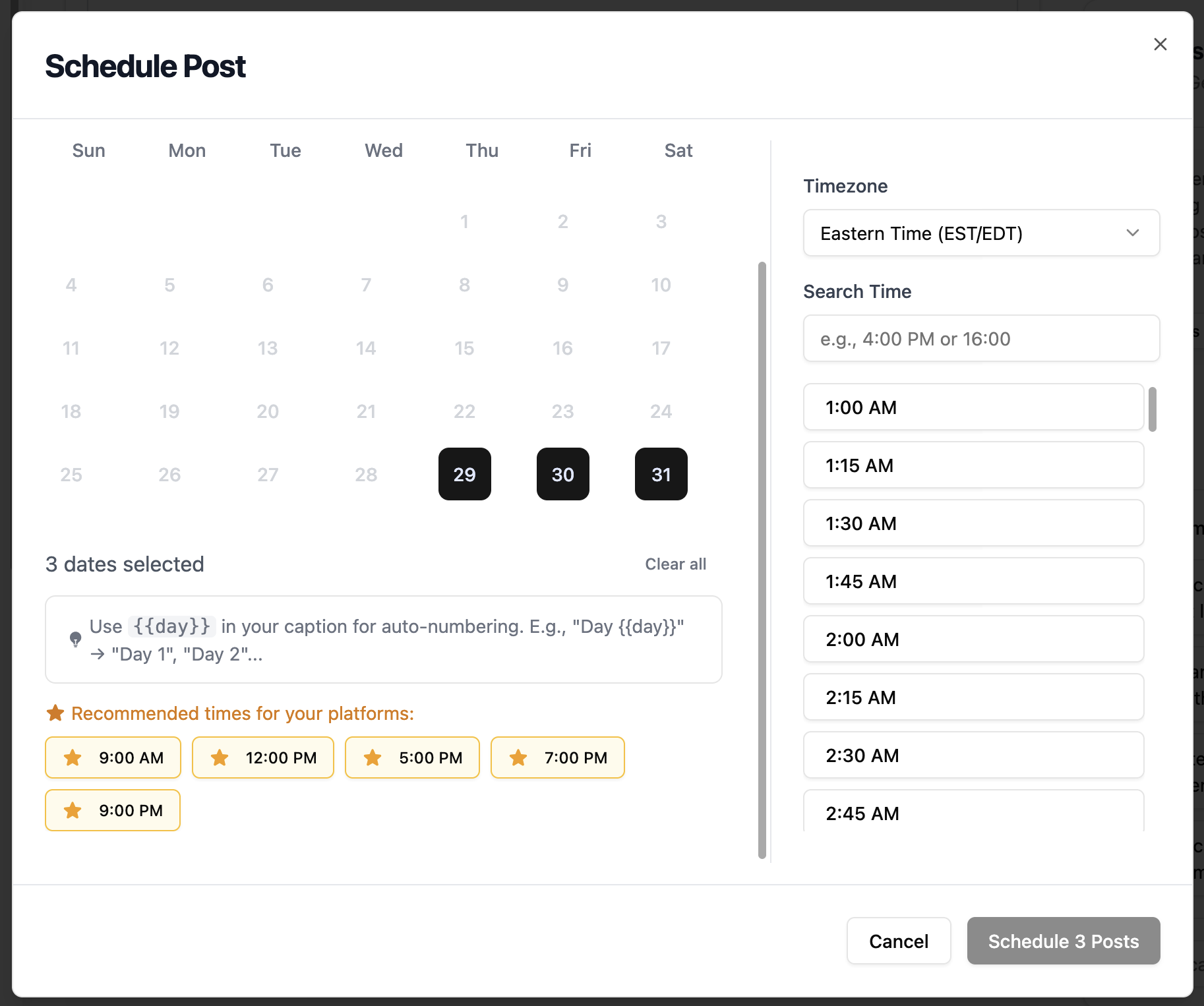
Schedule for Engagement
Set your posting time for when your X audience is most active. Consider global timezones if you have an international audience.
- Best times: 9 AM - 12 PM weekdays
- Lunch hours see high engagement
- News and trending content benefits from real-time posting
X (Twitter) Scheduling Features
Everything you can do when bulk scheduling X (Twitter) posts with TheTabber.
X (Twitter) Scheduling Tips
Expert tips to maximize your X (Twitter) reach with scheduled posts.
Who Should Bulk Schedule X (Twitter)?
Ideal for brands, journalists, thought leaders, and creators who want to maintain an active X presence with timely, engaging content.
Ready to Schedule Your X (Twitter) Posts?
Bulk scheduling X posts lets you maintain a consistent presence on the platform without constant manual posting. Stay part of the conversation while TheTabber handles the publishing.
Start Scheduling FreeX (Twitter) Scheduling FAQ
Can I schedule X threads with TheTabber?
Yes! TheTabber supports scheduling threads. Create multiple connected posts that will be published as a thread at your scheduled time.
What's the character limit for scheduled posts?
Standard X accounts have a 280 character limit. X Premium subscribers have extended limits. TheTabber shows your character count as you type.
Can I schedule posts with polls?
Currently, polls need to be created directly in X. TheTabber supports scheduling text, images, and video posts.
Will my scheduled posts show as scheduled?
No, scheduled posts appear exactly like manually posted content. There's no indicator that a post was scheduled.
Can I reply to specific tweets on schedule?
TheTabber schedules original posts to your timeline. Scheduled replies to specific tweets are not currently supported.
How do I number posts in a daily series?
Use {{#}} in your post text. It auto-fills with sequential numbers (1, 2, 3...) when bulk scheduling. Perfect for 'Day {{#}} of 30', 'Tip #{{#}}', etc.